
Can you rely on your iPhone to track your fitness? Yes, your iPhone can be a surprisingly accurate tool for monitoring various aspects of your health and activity. While it might not replace a dedicated sports watch for elite athletes, for the average user, the iPhone fitness tracker accuracy is generally quite good for everyday tracking. This blog post delves into the intricacies of how your iPhone measures up in the world of fitness tracking and Apple Health data reliability.
The iPhone, especially when paired with an Apple Watch, acts as a powerful personal health hub. It collects a wealth of information, from the number of steps you take to the quality of your sleep. But how precise is this data? Let’s explore the various components that contribute to its accuracy and what factors can influence it. We’ll break down watch activity tracking precision, workout log accuracy, heart rate sensor precision, calorie counter accuracy, step count accuracy, GPS tracking accuracy, and sleep tracking reliability, ultimately giving you a clearer picture of your health app precision.
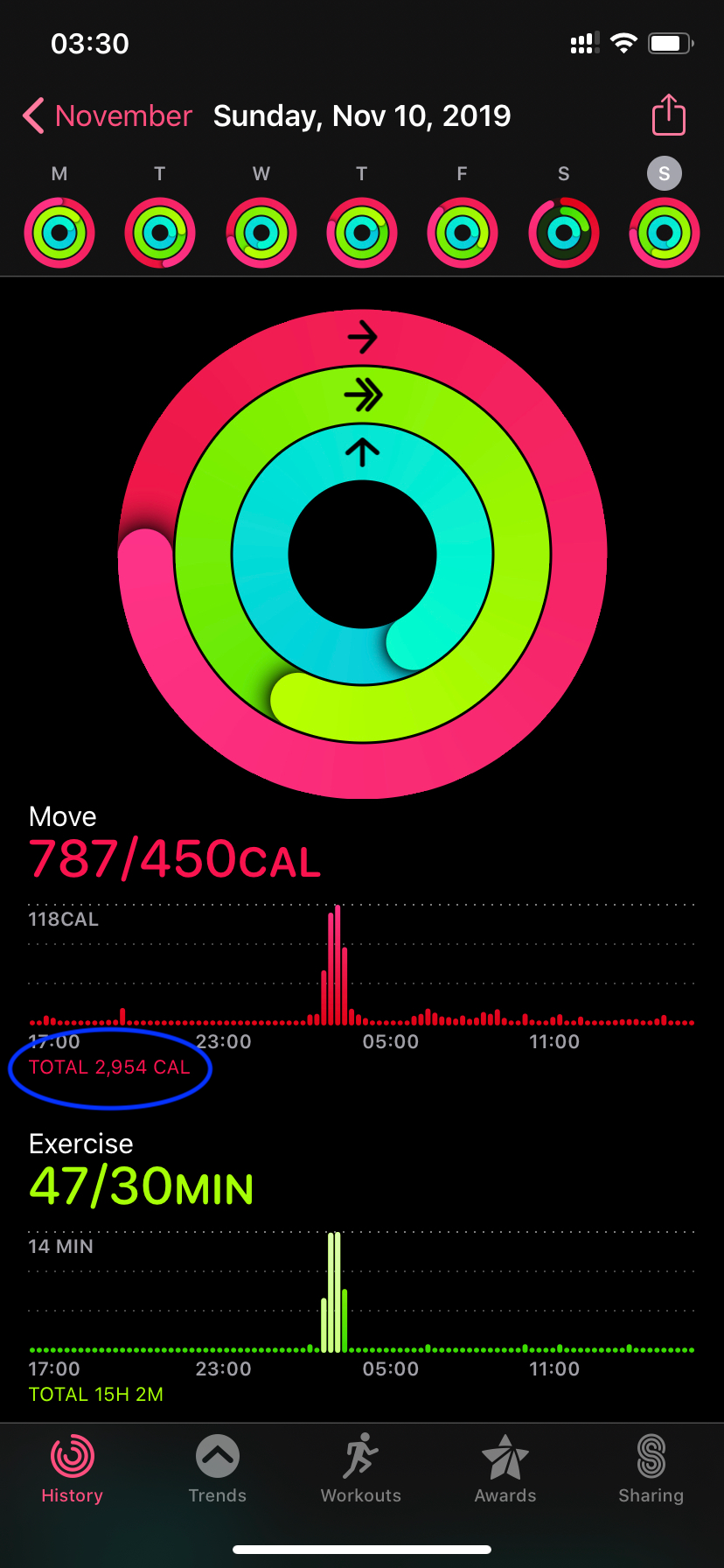
Image Source: miro.medium.com
Decoding Step Count Accuracy
Your iPhone’s ability to count steps is one of its most fundamental fitness tracking features. It primarily uses its accelerometer and, to some extent, its gyroscope to detect the rhythmic motion of walking or running.
How it Works
- Accelerometer: This sensor measures acceleration, including gravity. When you walk, your body moves in a specific pattern, creating accelerations that the iPhone can detect.
- Movement Algorithms: Apple employs sophisticated algorithms to differentiate between genuine steps and other types of movement, like being in a car or shaking your phone. These algorithms are designed to recognize the characteristic up-and-down motion of walking.
Factors Affecting Step Count
While generally reliable, several factors can influence your step count accuracy:
- How you carry your iPhone:
- Pants Pocket: Carrying your iPhone in your pants pocket is usually the most accurate way to track steps. The close proximity to your body allows the accelerometer to pick up your natural stride motion.
- Handbag/Backpack: If your iPhone is loosely placed in a bag, it might not register all your steps, especially if the bag doesn’t move much with your body.
- Hand: Holding your phone in your hand can lead to overcounting or undercounting, as the hand’s movement might not perfectly mimic your stride.
- Type of Movement: Activities like shuffling your feet or very short, choppy steps might be missed by the sensors.
- Background Apps: While the fitness tracking is designed to be efficient, an abundance of resource-intensive background apps could theoretically impact its responsiveness, though this is less common.
- Software Updates: Apple regularly refines its algorithms through iOS updates. Keeping your iPhone updated is crucial for optimal iPhone fitness tracker accuracy.
Benchmarking Step Counts
To gauge your iPhone’s accuracy, you can compare its step count to another device you trust, like a dedicated pedometer or a different fitness tracker, especially during a controlled walk. However, remember that even dedicated devices have slight variations.
Evaluating Workout Log Accuracy
Logging your workouts is essential for monitoring progress and understanding your exercise habits. The iPhone’s Fitness app and related apps offer various ways to log activities, and their accuracy can vary depending on the type of workout and how it’s logged.
Types of Workout Logging
- Automatic Detection (Apple Watch): If you have an Apple Watch, it can often automatically detect and log certain workouts like walking, running, and cycling after a period of continuous activity.
- Manual Logging (iPhone/Apple Watch): You can manually start and stop workouts from the Fitness app on your iPhone or the Workout app on your Apple Watch. This offers more control and is generally more precise for specific exercises.
- Third-Party Apps: Many other fitness apps sync with Apple Health, allowing you to log a wider variety of activities. The accuracy here depends on the third-party app’s design and how it integrates with Apple Health.
Precision in Different Activities
- Cardio Activities (Running, Cycling, Walking): For these activities, the iPhone (especially with an Apple Watch) uses GPS, motion sensors, and heart rate data to provide accurate metrics like distance, pace, duration, and estimated calories burned.
- Strength Training: Logging strength training accurately can be more challenging. While you can log sets, reps, and weight manually, the app can’t automatically detect these details. The primary value here is in recording your effort and progress over time.
- Other Activities (Yoga, Swimming, etc.): The accuracy for these depends heavily on the availability of specific sensors and algorithms. For instance, the Apple Watch has features for swim tracking, but the iPhone alone might rely on more general motion detection.
Enhancing Workout Log Accuracy
- Use Your Apple Watch: For the most accurate workout tracking, an Apple Watch is highly recommended. It provides a more comprehensive set of sensors and better data integration.
- Ensure GPS is Enabled: For outdoor activities, make sure your iPhone’s GPS is turned on and that the Fitness app has permission to access your location.
- Accurate Personal Information: Ensure your height, weight, age, and gender are correctly entered in your Health profile. This is vital for accurate calorie calculations.
- Calibrate Your Apple Watch: Regularly calibrating your Apple Watch with outdoor walks or runs using its GPS helps improve the accuracy of distance and pace tracking for all subsequent workouts.
Delving into GPS Tracking Accuracy
For outdoor activities like running, cycling, or hiking, GPS is a crucial component for tracking distance, speed, and mapping your route. The GPS tracking accuracy on your iPhone has improved significantly over the years.
How iPhone GPS Works
Your iPhone uses a combination of technologies to determine your location:
- GPS (Global Positioning System): This is the primary method, using signals from satellites orbiting Earth.
- Assisted GPS (A-GPS): This uses cellular and Wi-Fi network data to help the GPS acquire a satellite lock faster and improve accuracy in areas with weaker satellite signals.
- Wi-Fi Positioning: Your iPhone can use known locations of Wi-Fi networks to help pinpoint your position, especially indoors or in dense urban areas.
- Cell Tower Triangulation: In areas with no GPS or Wi-Fi, your phone can use the signals from nearby cell towers to estimate your location.
Factors Influencing GPS Accuracy
Several environmental and technical factors can affect GPS tracking accuracy:
- Satellite Visibility: Clear, unobstructed views of the sky are essential for the best GPS performance.
- Urban Canyons: Tall buildings can block or reflect satellite signals, leading to inaccuracies.
- Dense Forests: Tree cover can also interfere with satellite signals.
- Tunnels and Underground: GPS signals cannot penetrate underground or through tunnels.
- Time to First Fix (TTFF): How quickly your iPhone acquires a GPS signal. A-GPS significantly speeds this up.
- Device Placement: Carrying your iPhone in a way that allows for good sky visibility (e.g., a running belt or armband) can improve accuracy.
- Motion and Pacing: If you’re moving very slowly or stopping frequently, the GPS might have more difficulty creating a smooth, accurate track.
- Software and Hardware: Newer iPhone models generally have more advanced GPS hardware and software for better performance.
Tips for Better GPS Tracking
- Start Your Workout When Ready: Allow your iPhone a moment to acquire a strong GPS signal before starting your workout. The Workout app usually shows a GPS indicator.
- Keep Your iPhone Updated: Software updates often include improvements to location services and GPS performance.
- Ensure Location Services are On: Go to Settings > Privacy & Security > Location Services and make sure it’s enabled for the Fitness app and Workout app.
- Calibrate Your Apple Watch: As mentioned earlier, calibrating your Apple Watch with outdoor runs helps it learn your stride and improve pace and distance tracking even when not using GPS.
Examining Heart Rate Sensor Precision
The Apple Watch, which works seamlessly with your iPhone’s Health app, features a sophisticated optical heart rate sensor. The heart rate sensor precision is generally considered very good for everyday activities and moderate exercise.
How the Optical Heart Rate Sensor Works
The sensor uses green LED lights to shine light onto your wrist. As blood pulses through the capillaries beneath your skin, the amount of light absorbed changes. The sensor detects these fluctuations and converts them into your heart rate.
Accuracy in Different Scenarios
- Resting Heart Rate: The sensor is excellent at capturing your resting heart rate, which is a good indicator of cardiovascular health.
- Moderate Exercise: For steady-state cardio activities like jogging, cycling, or brisk walking, the accuracy is typically high.
- High-Intensity Interval Training (HIIT) and Strength Training: During intense bursts of activity or sudden changes in heart rate, like those experienced in HIIT or heavy weightlifting, the optical sensor can sometimes lag slightly behind. This is because it takes a moment for the blood flow changes to register clearly. Some more advanced chest strap monitors may offer slightly faster response times in these extreme scenarios.
- Cold Weather and Skin Perfusion: In cold weather, your blood flow to the extremities can decrease, which might affect the sensor’s ability to get a consistent reading.
- Fit of the Watch: A watch that is too loose can lead to intermittent or inaccurate readings. It should be snug but comfortable.
Factors Affecting Heart Rate Readings
- Skin Tone: While Apple has made significant strides, very dark skin tones can sometimes pose a challenge for optical sensors due to melanin absorption. However, algorithm improvements have largely mitigated this.
- Tattoos: Tattoos on the wrist can interfere with the light from the LEDs, potentially affecting accuracy.
- Movement Artifacts: Vigorous or jerky movements can sometimes be misinterpreted as heart rate signals.
- Sweat: Excessive sweat can also interfere with the sensor’s contact with the skin.
Improving Heart Rate Measurement
- Proper Fit: Ensure your Apple Watch is snug on your wrist, about a finger’s width above your wrist bone.
- Clean Sensor: Keep the back of the watch and your wrist clean.
- Avoid Extreme Cold: If exercising in cold weather, try to keep your wrist warm.
- Consider a Chest Strap: For competitive athletes or those prioritizing absolute precision during high-intensity interval training, a Bluetooth chest strap heart rate monitor that syncs with your iPhone or Apple Watch can offer the highest level of accuracy.
Assessing Calorie Counter Accuracy
Estimating calorie burn is one of the most complex aspects of fitness tracking. The calorie counter accuracy on your iPhone and Apple Watch is an estimation based on multiple factors.
How Calories Are Calculated
The iPhone and Apple Watch estimate calorie burn using a combination of:
- Basal Metabolic Rate (BMR): This is the number of calories your body burns at rest. It’s estimated based on your age, sex, weight, and height.
- Activity Level: The more active you are, the more calories you burn. This is where step counts, workout data, and heart rate come into play.
- Heart Rate: Higher heart rates during exercise generally indicate higher calorie expenditure.
- Workout Type and Intensity: Different activities burn calories at different rates.
- Personal Data: The accuracy of your entered personal details (age, weight, height, gender) is critical.
Limitations and Variability
It’s important to remember that calorie counters are estimates.
- Individual Metabolism: Everyone’s metabolism is slightly different, and this can’t be fully captured by algorithms.
- Workout Intensity Fluctuations: Even within a single workout, your intensity can vary, making precise real-time calorie calculation difficult.
- “Active Calories” vs. “Total Calories”: The Health app typically shows “Active Calories” (calories burned through movement and exercise) and “Total Calories” (active calories plus your BMR for the day).
Factors Enhancing Calorie Estimation
- Accurate Personal Information: Double-check that your height, weight, age, and gender are correct in your Health profile.
- Wear Your Apple Watch Consistently: For the most accurate calorie burn estimates during workouts, wearing your Apple Watch is essential.
- Log Workouts Manually: If the automatic detection misses a workout or logs it incorrectly, manually logging it with accurate details improves the overall estimate.
- Calibrate Your Apple Watch: A calibrated Apple Watch leads to more accurate pace and distance, which in turn improves calorie estimates.
Fathoming Sleep Tracking Reliability
The iPhone, particularly when paired with an Apple Watch, offers sleep tracking capabilities. The sleep tracking reliability has improved with each software generation.
How Sleep is Tracked
- Apple Watch: The Apple Watch detects sleep by monitoring your movement and heart rate. It can identify when you’re asleep, when you’re in light sleep, deep sleep, or REM sleep.
- iPhone (Bedtime Mode): Without an Apple Watch, the iPhone’s Bedtime mode (part of the Clock app) can help establish a sleep schedule and track when you’re in bed, but it doesn’t offer detailed sleep stage analysis.
Accuracy of Sleep Stages
- Sleep Detection: The Apple Watch is generally good at detecting when you fall asleep and wake up, especially if you wear it consistently.
- Sleep Stages: The accuracy of distinguishing between light, deep, and REM sleep using wrist-based sensors is still an evolving area. While the Apple Watch provides data, it’s based on movement and heart rate patterns, which are proxies for sleep stages. More clinical sleep studies use EEG (electroencephalogram) for precise measurements. For everyday users, the Apple Watch provides a useful overview and trend analysis of your sleep patterns.
Factors Influencing Sleep Tracking
- Wearing the Watch to Bed: This is non-negotiable for Apple Watch sleep tracking.
- Watch Fit: A comfortable but snug fit is important for accurate heart rate readings during sleep.
- Battery Life: Ensure your Apple Watch is sufficiently charged overnight.
- Interruptions: Waking up briefly during the night might be logged as a wake-up period, depending on the duration and your movement.
Maximizing Sleep Tracking Insights
- Consistency is Key: Wear your watch every night to build a consistent sleep history.
- Review Your Data: Look at your sleep trends in the Health app to identify patterns.
- Focus on Trends, Not Absolute Numbers: While the exact duration of each sleep stage might have some variability, the overall trends of how much sleep you’re getting and your typical wake-up times are valuable insights.
Comprehending Watch Activity Tracking Precision
When you own an Apple Watch, its integration with your iPhone’s Health app provides a comprehensive picture of your daily activity. The watch activity tracking precision is where the iPhone really shines as a fitness companion.
Key Activity Metrics Tracked by Apple Watch
- Steps: As discussed, the Apple Watch has its own accelerometer, often complementing the iPhone’s tracking.
- Active Calories: These are tracked more directly through heart rate and movement, generally providing a more accurate picture than the iPhone alone.
- Exercise Minutes: This feature tracks periods of brisk walking or more vigorous activity.
- Stand Hours: Encouraging you to stand and move at least once an hour.
- Workout Specific Metrics: For logged workouts, the Apple Watch provides detailed data like distance, pace, heart rate zones, elevation, and more, as discussed in previous sections.
How Apple Watch Enhances Accuracy
- Dedicated Sensors: The Apple Watch has a dedicated accelerometer, gyroscope, barometer, and optical heart rate sensor, offering more data points than the iPhone alone.
- Better Wearability: Being worn on the wrist, it’s generally better positioned to capture movement accurately throughout the day, regardless of where your phone is.
- Direct Data Input: For workouts, you initiate them directly on the watch, ensuring the correct activity type and start/end times are recorded.
- Heart Rate Integration: The continuous heart rate monitoring on the watch is crucial for accurate calorie burn calculations and understanding workout intensity.
Benchmarking Your Apple Watch Data
Compare your Apple Watch data with other trusted devices. If you consistently see significant discrepancies across multiple activities and days, investigate the fit of your watch, ensure it’s updated, and consider recalibrating it.
Overall Health App Precision
The health app precision on your iPhone is a cumulative effect of all these individual tracking components. Apple Health acts as a central repository for your health data, pulling information from your iPhone, Apple Watch, and compatible third-party apps.
Data Integration and Reliability
- Centralized Hub: Apple Health is excellent at consolidating data from various sources, giving you a holistic view of your health.
- Source Prioritization: When data conflicts arise (e.g., step counts from your iPhone and Apple Watch), Apple Health typically prioritizes data from the device you’re wearing or the one designated as the primary source for that metric.
- Data Integrity: The reliability of the data within Apple Health hinges on the accuracy of the source devices and apps. If a third-party app is inaccurate, that inaccuracy will be reflected in Apple Health.
Ensuring Data Reliability
- Use Trusted Sources: Stick to reputable fitness apps and devices that sync with Apple Health.
- Regularly Review Permissions: Check which apps have access to your health data in Settings > Health > Data Access & Devices. Revoke access for any apps you no longer use or trust.
- Maintain Accurate Personal Details: As stressed before, keeping your profile information up-to-date is paramount for accurate health insights.
- Keep Software Updated: Ensure both your iPhone and Apple Watch are running the latest software versions.
Frequently Asked Questions
Q1: Is my iPhone’s step count accurate if I don’t have an Apple Watch?
Yes, your iPhone’s built-in accelerometer and sophisticated algorithms provide a generally accurate step count when carried in a pocket. It’s a reliable tool for tracking daily movement.
Q2: How accurate is the calorie counter on the iPhone and Apple Watch?
The calorie counter is an estimation. It’s generally accurate for moderate activities but can be less precise during very high-intensity or erratic movements. Accuracy improves significantly with an Apple Watch due to its heart rate sensor. Always ensure your personal details are correct for better estimates.
Q3: Can I trust the sleep tracking data from my Apple Watch?
The Apple Watch is good at detecting sleep and wake times and provides a useful overview of sleep stages (light, deep, REM). While not as precise as clinical sleep studies, it offers valuable trends for improving your sleep habits.
Q4: Does my iPhone’s GPS work for tracking outdoor runs without an Apple Watch?
Yes, your iPhone’s GPS can track outdoor runs, walks, and cycles, providing data on distance, pace, and mapping your route. However, an Apple Watch offers a more seamless experience and can supplement GPS with motion data for better accuracy, especially during arm swings or if the phone’s view of the sky is obstructed.
Q5: What is the most accurate way to track workouts with my iPhone?
The most accurate way is to use an Apple Watch paired with your iPhone and initiate workouts directly from the watch. This utilizes a wider range of sensors and provides more detailed and precise metrics. If you don’t have an Apple Watch, manual logging of workouts on your iPhone with accurate details and ensuring GPS is enabled for outdoor activities will provide the best results.
Q6: Why might my step count be different on my iPhone and Apple Watch?
Both devices have their own motion sensors. If you carry your iPhone and wear your Apple Watch, they might register slightly different step counts based on how each device captures movement. Apple Health usually prioritizes data from your Apple Watch when both are available.
Q7: How can I improve the accuracy of my fitness tracking data?
Ensure your personal information in the Health app is correct, wear your Apple Watch snugly and correctly, keep your devices updated, calibrate your Apple Watch with outdoor workouts, and allow adequate time for GPS signal acquisition before starting outdoor activities.
In conclusion, your iPhone, especially when paired with an Apple Watch, offers robust and generally accurate fitness tracking capabilities. While no consumer device is perfect, by understanding how it works and the factors that can influence its precision, you can confidently use your iPhone as a valuable tool on your health and fitness journey.