
Does my fitness app need special permissions to track my steps? Yes, absolutely. Your fitness app needs specific permissions, particularly access to your phone’s motion and fitness data, to accurately count your steps. Without these permissions, it’s like trying to drive a car without keys – it simply won’t work. This article will guide you through common reasons why your fitness app might not be tracking your steps and provide actionable solutions.
Many people rely on fitness apps to monitor their daily activity, from simple step counts to more complex workout tracking. It’s frustrating when these apps fail to do their primary job: counting your steps. This guide dives deep into why your phone’s pedometer might not be working and how to fix common step counter issues. We’ll cover everything from basic settings to more complex app not recording steps scenarios.
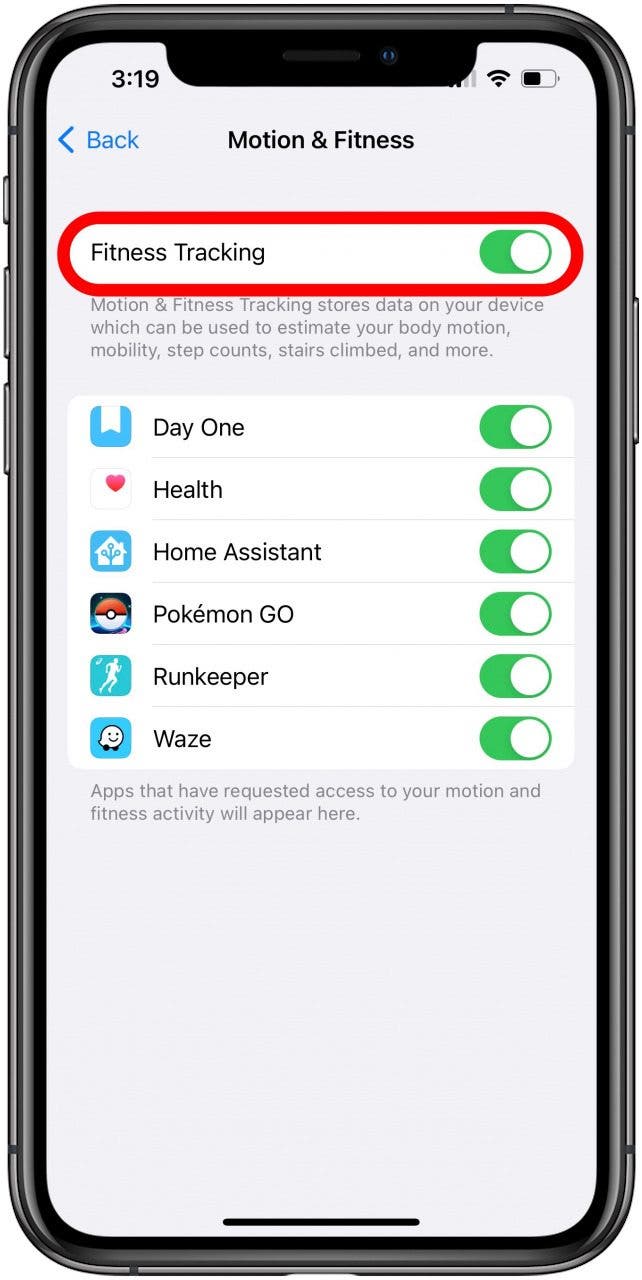
Image Source: www.iphonelife.com
Common Reasons for Inaccurate Step Tracking
There are several common culprits when your fitness app isn’t faithfully recording your daily strolls. Let’s break down these issues and explore how to resolve them.
App Permissions: The Gatekeepers of Data
As mentioned, app permissions for step counting are crucial. Without the right access, your app is blind to your movement.
Essential Permissions to Check
- Motion & Fitness Activity: This is the most vital permission. It allows the app to access data from your phone’s sensors that detect movement.
- Background App Refresh/Activity: For continuous tracking, the app needs to run in the background. This allows it to monitor your steps even when you’re not actively using the app.
- Location Services (Sometimes): While not always directly for step counting, some apps use location to enhance accuracy, especially for outdoor walks or runs. If your app tracks distance, this might be relevant.
How to Grant Permissions
The exact steps vary slightly depending on your phone’s operating system (iOS or Android).
For iOS (iPhone):
- Go to Settings.
- Scroll down and find your fitness app.
- Tap on the app name.
- Ensure Motion & Fitness is toggled ON.
- Check Background App Refresh and ensure it’s enabled for the app.
For Android:
- Go to Settings.
- Tap on Apps or Applications.
- Find and tap on your fitness app.
- Tap on Permissions.
- Grant permission for Physical activity or Motion and Fitness.
- Go back to Settings, then Apps, find your app, tap Battery, and ensure Background restriction is set to Unrestricted or that Battery Saver is not limiting it.
Background Activity: The Silent Worker
For your app to track your steps consistently, it needs to be allowed to run in the background. If your phone aggressively manages background processes to save battery, it might shut down your fitness app, stopping the tracking.
Why Background Activity Matters
- Continuous Monitoring: Step counting happens as you move throughout the day, not just when you open the app. Background activity ensures constant data collection.
- Real-time Updates: Apps can provide real-time step counts and progress updates only if they are active in the background.
Enabling Background Activity
- iOS: As noted above, check Settings > [Your App] > Background App Refresh.
- Android: This is often controlled by battery optimization settings. Go to Settings > Battery > Battery Optimization (or similar wording) and find your app. Set it to Not optimized or Unrestricted. Some phones have a specific setting for Background App Activity or Background usage limits within the app’s settings.
Battery Saver Modes: The Double-Edged Sword
While battery saver affecting tracking is a common issue, it’s often unintentional. Battery saver modes are designed to limit background processes and sensor usage to extend battery life. Unfortunately, this often includes the sensors your fitness app uses for step counting.
How Battery Saver Interferes
- Sensor Throttling: When battery saver is on, the phone might reduce the sensitivity or frequency of sensor readings, leading to missed steps.
- App Suspension: Aggressive battery savers can outright close apps running in the background, halting all tracking.
Managing Battery Saver Settings
- Disable for Specific Apps: Many phones allow you to exclude certain apps from battery optimization. Find your fitness app in the battery settings and exempt it.
- Turn Off Battery Saver: The simplest solution, if feasible, is to turn off battery saver mode when you need accurate step tracking. Consider if the battery savings are worth the lost data.
- Check App-Specific Battery Settings: Some apps have their own internal battery management options. Review your fitness app’s settings for any relevant choices.
Phone’s Pedometer Not Working: Hardware & Software Glitches
Sometimes, the issue isn’t with the app itself, but with the underlying system – the phone’s pedometer not working. This can be due to a software glitch or, less commonly, a hardware issue.
Diagnosing Pedometer Issues
- Restart Your Phone: A simple reboot can resolve many temporary software glitches.
- Check for System Updates: Ensure your phone’s operating system is up to date. Updates often include bug fixes for sensors and system functions.
- Test Other Apps: If you have another app that uses step tracking (like Google Fit or Apple Health), see if that app is also failing to track steps. This helps determine if it’s a system-wide problem or app-specific.
- Sensor Test Apps: Some advanced users can find diagnostic apps on app stores that test the functionality of various phone sensors, including the accelerometer and gyroscope, which are crucial for step counting.
Fixing Pedometer Glitches
- Clear Cache and Data (Android): For Android users, go to Settings > Apps > [Your App] > Storage. Try clearing the cache first. If that doesn’t work, clearing data will reset the app to its default state (you might need to log in again).
- Reinstall the App: Uninstalling and then reinstalling your fitness app can sometimes resolve corrupted app files that might be interfering with tracking.
Fitness Tracker Not Syncing: The Communication Breakdown
If you’re using a dedicated fitness tracker not syncing with your phone app, the problem lies in the connection between the device and your smartphone.
Common Syncing Issues
- Bluetooth Problems: The tracker relies on Bluetooth to communicate with your phone. Ensure Bluetooth is enabled on your phone and that the tracker is in pairing mode or connected.
- Outdated Firmware: Your fitness tracker’s firmware might be outdated. Check the manufacturer’s app for firmware update notifications.
- Interference: Other Bluetooth devices or strong Wi-Fi signals can sometimes interfere with the connection.
- App/Device Compatibility: Ensure your fitness tracker is compatible with your phone model and operating system version.
Troubleshooting Syncing Problems
- Restart Both Devices: Turn off your phone and your fitness tracker, wait a few seconds, and turn them back on.
- Unpair and Re-pair: Go to your phone’s Bluetooth settings, “forget” your fitness tracker, and then go through the pairing process again via the fitness app.
- Check App Updates: Make sure the fitness tracker’s dedicated app is also updated to the latest version.
- Proximity: Ensure your fitness tracker is close to your phone during the syncing process.
- Charge Both Devices: Low battery on either the tracker or phone can sometimes cause syncing issues.
Incorrect Step Count: When Numbers Don’t Add Up
Beyond not tracking at all, you might experience an incorrect step count. This can be due to various factors, including how the app interprets your movements.
Factors Causing Incorrect Counts
- Arm Movements: Some apps rely heavily on arm swings detected by your phone’s accelerometer. If you carry your phone in your pocket or bag, or if your arms aren’t swinging naturally, it can lead to undercounting.
- Non-Walking Movements: Activities like driving on bumpy roads, riding a bike, or even vigorous arm movements while sitting can sometimes be misinterpreted as steps, leading to overcounting.
- Algorithm Sensitivity: Different apps use different algorithms to count steps. Some are more sensitive than others.
- Device Placement: Where you keep your phone can significantly impact accuracy. A pocket that allows for natural arm swing is usually best.
- App Updates: Sometimes, an app update might change its algorithm, leading to a perceived change in step count accuracy.
Improving Step Count Accuracy
- Consistent Phone Placement: Try to keep your phone in the same place (e.g., front pants pocket) throughout the day for consistent tracking.
- Experiment with Apps: If one app consistently gives inaccurate counts, try another. Some apps might have better algorithms for your specific usage patterns.
- Calibrate (if available): Some apps or devices offer calibration options. This usually involves walking a known distance and letting the app adjust its stride length based on your phone’s typical placement.
- Wearable Integration: For the most accurate step tracking, consider a dedicated wearable fitness tracker (like a smartwatch or fitness band) that often uses more sophisticated motion sensors and algorithms.
Mobile Health Data Synchronization: The Central Hub
Many fitness apps sync with a central health platform, like Apple Health (iOS) or Google Fit (Android). Issues with mobile health data synchronization can prevent your steps from appearing in your preferred app.
How Synchronization Works
Your phone’s native health platform acts as a repository for health data from various sources, including your phone’s built-in sensors and connected apps/devices. Your chosen fitness app then reads data from or writes data to this central hub.
Troubleshooting Synchronization Problems
- Check App Connections: In your phone’s main health app (Apple Health or Google Fit), go to the “Sources” or “Connected Apps” section. Ensure your fitness app is listed and has the necessary permissions to read and write step data.
- Re-authorize Connections: Sometimes, the connection between the apps can break. Try revoking access for your fitness app in the health app and then re-authorizing it.
- Sync Order: Ensure the app that collects the step data (often the phone’s basic step counter or a dedicated wearable app) is syncing to the central health platform, and then your chosen fitness app is reading from that platform.
- Data Conflicts: If multiple apps are trying to log the same steps, it can sometimes cause conflicts. Review your health app’s settings to see which sources are prioritized for step data.
Advanced Troubleshooting Steps
If the basic fixes don’t resolve your app not recording steps issue, consider these more advanced steps.
Clearing Cache and Data for System Services (Android)
For Android users, sometimes system services related to motion and fitness tracking can experience glitches.
- Go to Settings > Apps.
- Tap the three-dot menu (or settings icon) and select Show system.
- Look for services like Google Fit, Health Services, or Pedometer.
- Tap on these services and go to Storage.
- Try clearing the cache. If that doesn’t work, you might cautiously try clearing data, but be aware this could reset related settings.
Resetting Location Services and Motion Calibration
Sometimes, a reset of these specific system components can help.
- iOS: Go to Settings > General > Transfer or Reset iPhone > Reset > Reset Location & Privacy. This will reset your location settings and privacy permissions, requiring you to re-grant them. It can also sometimes resolve sensor-related issues.
- Android: While there isn’t a direct “reset motion calibration” option for users, clearing the cache for Google Fit (as mentioned above) can sometimes help. Ensure your phone’s software is up-to-date, as this includes sensor calibration.
Checking for Conflicting Apps
Having too many apps that try to track your steps simultaneously can sometimes cause conflicts or lead to inaccurate counts.
- Identify Potential Conflicts: Think about other apps you have installed that might also be monitoring your activity (e.g., other fitness apps, health monitoring apps).
- Temporarily Disable: Try disabling or uninstalling these conflicting apps one by one to see if your primary fitness app starts tracking correctly.
When to Seek Further Help
If you’ve gone through all these troubleshooting steps and your fitness app still isn’t tracking your steps, it might be time to contact support.
Contacting App Support
- Developer Website/Help Section: Most apps have a support or help section on their website or within the app itself. This often includes FAQs or contact forms.
- App Store Reviews: Sometimes, users report similar issues in app store reviews, and developers may respond or acknowledge the problem.
Contacting Phone Manufacturer Support
If you suspect the issue is with your phone’s hardware or core operating system services, contacting your phone manufacturer’s support might be necessary.
Providing Detailed Information
When contacting support, be prepared to provide:
- Your phone model and operating system version.
- The specific fitness app you’re using and its version number.
- A detailed description of the problem.
- The troubleshooting steps you’ve already tried.
Frequently Asked Questions (FAQ)
Q1: Why does my fitness app sometimes show an incorrect step count?
A1: Incorrect step counts can happen if your phone isn’t placed in a consistent spot, if your arms aren’t swinging naturally while walking (e.g., carrying bags), or if the app’s algorithm misinterprets other movements as steps.
Q2: Can my phone’s battery saver mode stop my step counter from working?
A2: Yes, battery saver modes often restrict background activity and sensor usage, which can prevent your fitness app from tracking your steps accurately or at all.
Q3: How do I ensure my fitness tracker syncs properly with my phone?
A3: Ensure Bluetooth is on, your tracker is charged and close to your phone, and both the tracker’s app and your phone’s OS are updated. Sometimes, unpairing and re-pairing the device via Bluetooth can resolve syncing issues.
Q4: What are the most important app permissions for step tracking?
A4: The most crucial permissions are access to “Motion & Fitness Activity” or “Physical Activity,” and often “Background App Refresh” or similar settings to allow continuous tracking.
Q5: My app suddenly stopped recording steps after an update. What should I do?
A5: Try clearing the app’s cache and data (on Android) or uninstalling and reinstalling the app. Also, check for a new update that might fix the bug. If the problem persists, report it to the app developer.
By systematically working through these troubleshooting steps, you can identify why your fitness app isn’t tracking your steps and get back to monitoring your progress accurately. Consistent use and proper settings are key to harnessing the full potential of your fitness apps.